A Calm Way to Organize Phone Notifications
A hypothetical walk-through shows how to sort essential alerts from interruptions, adjust settings by app, and make notification choices that fit the day.
A hypothetical walk-through shows how to sort essential alerts from interruptions, adjust settings by app, and make notification choices that fit the day.
Technology · 8 min read
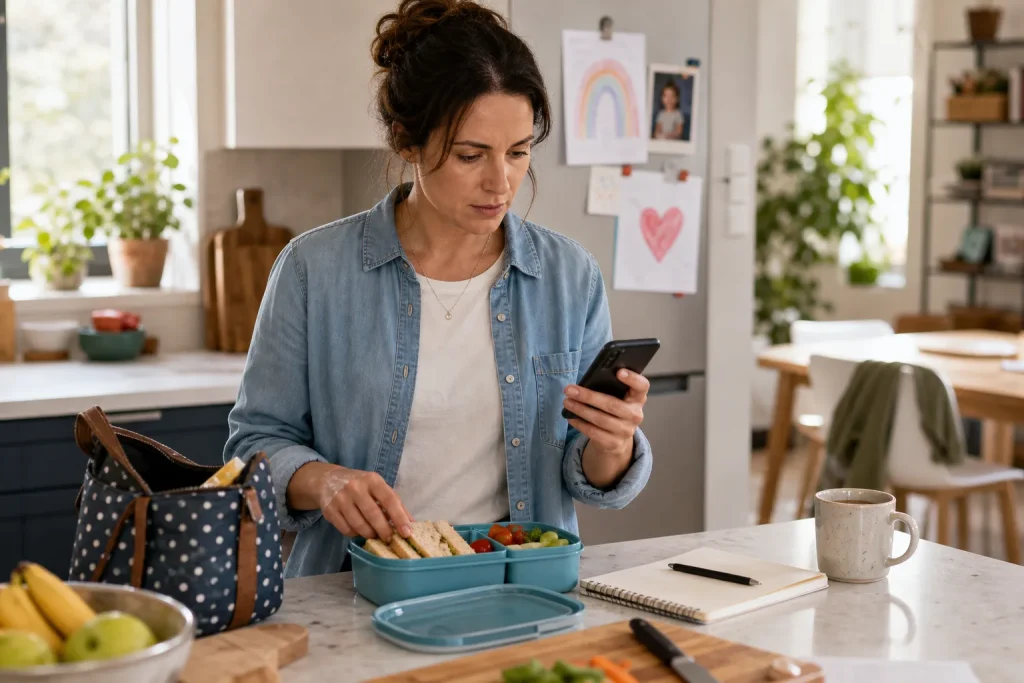
At 8:10 on a Tuesday morning, Mara’s phone lights up while she is packing lunch and trying to remember whether the library book is already in her bag. A work chat has posted a reaction, a shopping app wants her to see a sale, and the calendar has reminded her about a meeting she already knows is coming. A message from her child’s school sits among them. Mara notices it late, then spends the next hour swiping away alerts she did not need in the first place.
This is an invented situation, but the problem is familiar: a phone can treat very different information as if it deserves the same interruption. The useful response is not to silence everything or inspect every setting at once. Decide which alerts need to arrive promptly, which can wait, and which do not need to appear. Menu names and options change across operating-system versions and device makers, so check the current settings on the phone in hand rather than relying on a remembered path.
Notice the interruptions
Before changing settings, Mara spends a normal day observing which notifications arrive and what she does with them. She makes a short note in the Notes app, sorting alerts into three groups: needed now, useful later, and not useful. The point is not to record every buzz with forensic care. It is to catch patterns that are easy to miss when each alert arrives alone.
She notices that messages from the school and calls from family can require a timely response. Calendar alerts are useful, though several reminders for one event feel excessive. A delivery update matters when she is waiting for a parcel, but not on an ordinary day. Social reactions, promotional messages and game prompts rarely change what she needs to do.
These distinctions matter more than app names alone. One app may send an important account alert alongside a steady stream of optional nudges. A quiet day at home and a day full of appointments may also call for different arrangements; the aim is to fit the settings to actual routines.
Separate urgency from arrival
A notification is not urgent simply because an app sends it immediately. Urgency means that seeing the information soon could change a decision or prevent a practical problem. A school closure notice may qualify. A reminder that a familiar shop has added an item usually does not.
Mara asks what she would do if she saw each alert promptly. If a delay could create a genuine problem, she keeps a timely route available. If she can comfortably review it later, she chooses a quieter form or turns it off. If she cannot name a useful action that follows, that is a reason to disable it.
She separates the alert channel from the information itself. A bank transaction notice may be useful, while product announcements are not. A messaging app may need to show direct messages from selected people, but not every group reaction. App settings may offer categories or separate controls; if they do not, system settings may still offer choices for sounds, banners, badges or lock-screen display.
Change settings carefully
On an iPhone, notification controls are typically found in Settings, with app-specific options under Notifications; labels and available controls can vary by iOS version. On Android, the route and wording vary by manufacturer and version, with app notification controls commonly found through Settings under Notifications or Apps. Check the current menus on the device, or use Settings search for the app name or “notifications,” rather than assuming an older path still applies.
For each app, Mara asks: Does it need to interrupt me? Should it make a sound, appear as a banner or leave a badge? Is its information suitable for the lock screen? Can I choose categories or people? Would a scheduled summary be enough? The answers turn a vague wish for less noise into changes she can review one at a time.
She leaves calls and selected direct messages able to reach her promptly. She keeps calendar alerts but removes duplicate reminders where the app allows it. She disables promotional notifications in the shopping app while retaining order updates. In the social app, she turns off reactions and suggested content but keeps direct messages from a small group of people. If the phone offers scheduled delivery or notification summaries, she can use them for lower-priority updates.
There is no need to make every app silent. A quiet banner can be useful without demanding an immediate response, and a badge may help with an app someone checks deliberately. A message can also be important while its contents stay hidden on the lock screen. Sound, appearance, timing and privacy are separate choices where the device and app provide those controls.
Match settings to routines
One fixed arrangement may not suit every part of the day. iPhone Focus modes and Android Do Not Disturb or similar modes can limit interruptions during chosen periods, though names and options vary by version and device. They may allow selected people or apps through. A mode can help during sleep, focused work or family time, provided it does not block something the person depends on.
Mara sets a sleep mode that silences routine alerts but allows calls from family. During a work block, she permits calendar alerts and messages from her manager, while non-urgent apps remain quiet. At home, she uses no special mode because the app settings already remove much of the unnecessary traffic. This is a modest arrangement, not a miniature air-traffic control system.
Before relying on a mode, she checks its exceptions. Some devices offer options for selected contacts, alarms or particular apps; the exact choices differ. Those exceptions should match a real need. A mode that admits every app “just in case” has mostly been given a new name.
Someone using one phone for work and personal life might quiet work chat outside working hours while keeping calls from chosen contacts available. Someone with changing shifts might switch modes manually rather than set a schedule that repeatedly guesses wrong. Convenience is useful; a setting that needs constant correction is simply another notification, only with better manners.
Mara’s Tuesday settings
Imagine Mara has one phone for family, work, shopping, school messages and social apps. Her aim is to notice time-sensitive family and school information, keep her calendar helpful, and stop promotional alerts from interrupting lunch preparation. She wants calls from family to reach her overnight, will use built-in settings, and does not want a complicated schedule.
She observes a normal weekday and notes which alerts lead to an action. She keeps sounds and banners for family calls and selected school messages, then checks whether the school app separates urgent notices from general announcements. If it does, she gives urgent notices a more noticeable alert and leaves general announcements quieter; if it does not, she keeps the app’s alerts visible and checks its information when convenient rather than silencing the whole app.
She keeps one useful calendar reminder for each relevant event where the app permits it. In the shopping app, she disables marketing alerts but leaves order updates on. In the social app, she turns off reactions and recommendations while keeping direct messages from close contacts. She then sets a sleep mode to silence routine alerts, selects family calls as an exception, and checks that the mode’s call settings match that choice.
The expected result is fewer interruptions from promotions and reactions, while chosen calls and school messages remain easier to notice. The tradeoff is that some lower-priority information may wait until Mara opens an app, and the school app may need another adjustment if it groups urgent and general notices together. On a later ordinary day, if a useful alert is too quiet, she changes that app’s sound or banner setting; if a low-value alert returns, she checks for a category control before re-enabling all notifications.
Keep changes manageable
Notification settings are not a one-time declaration of virtue. New apps ask for permission, existing apps add categories, and routines change. When an app requests permission, Mara can decide in context rather than approving it automatically. If she is unsure, declining initially is often reversible through the app’s or phone’s settings.
A change in work, school or caregiving routines can be a reason to review settings. Installing an app that requests alerts can be another. The review need not become a weekly chore; revisit the settings when the routine or app changes, not as a ceremonial audit every Sunday.
If an important alert does not arrive, check both the app’s notification preferences and the phone’s system controls. Also check whether a Focus or Do Not Disturb mode is active, whether the app is permitted to run as needed in the background, and whether previews are hidden. For account, payment or security alerts, use the service’s official settings and support information rather than links in an unexpected message. If missing an alert could have serious consequences, do not rely on one phone notification; ask the relevant service or a qualified professional about an appropriate backup channel.
The best arrangement depends on the person’s routine. Someone who works on call may need broader access; someone who finds banners distracting may prefer a scheduled summary; someone concerned about privacy may hide previews while keeping sounds. Treat the phone like a hall table: leave what needs attention within reach, and stop piling every leaflet on top of it.